Counselor User Guide
Version 1.0 | Effective Date: 14th Feb 2026
1. Introduction
Welcome to CounselNavi – your one-stop destination for career counselling, career guidance, and Industry mentorship.
This guide is to help career Counsellors, mentors, Industry experts and admission counsellors to effectively use the CounselNavi portal.
2. Getting Started
Website https://counselnavi.com/
2.1 Creating an account
Sign-up with: User type as
- Counsellor: If you are a Career Counsellor or Admission Counsellor
- Industry Expert: If you are an Industry mentor.
You can sign-up using email ID or your LinkedIn ID.
If you want up both, you are welcome to do so, just use separate email IDs to sign-up for these 2 roles to avoid role conflict.
 |
 |
After sign-up you will get a confirmation email on your registered ID. Follow the steps from the email. Do watch the SPAM / Junk folder as sometime the confirmation email may land up there.
In case you face an authentication or password mismatch issue, after the confirmation screen, then use the Reset password functionality.
Note: The user guide for Industry Expert functions will be available under IE login. Admission counsellor functions will be detailed in due course.
2.2 Update your profile
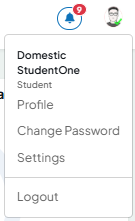
After creating an account, sign-in and update your profile. (from the Top right corner “Profile”).
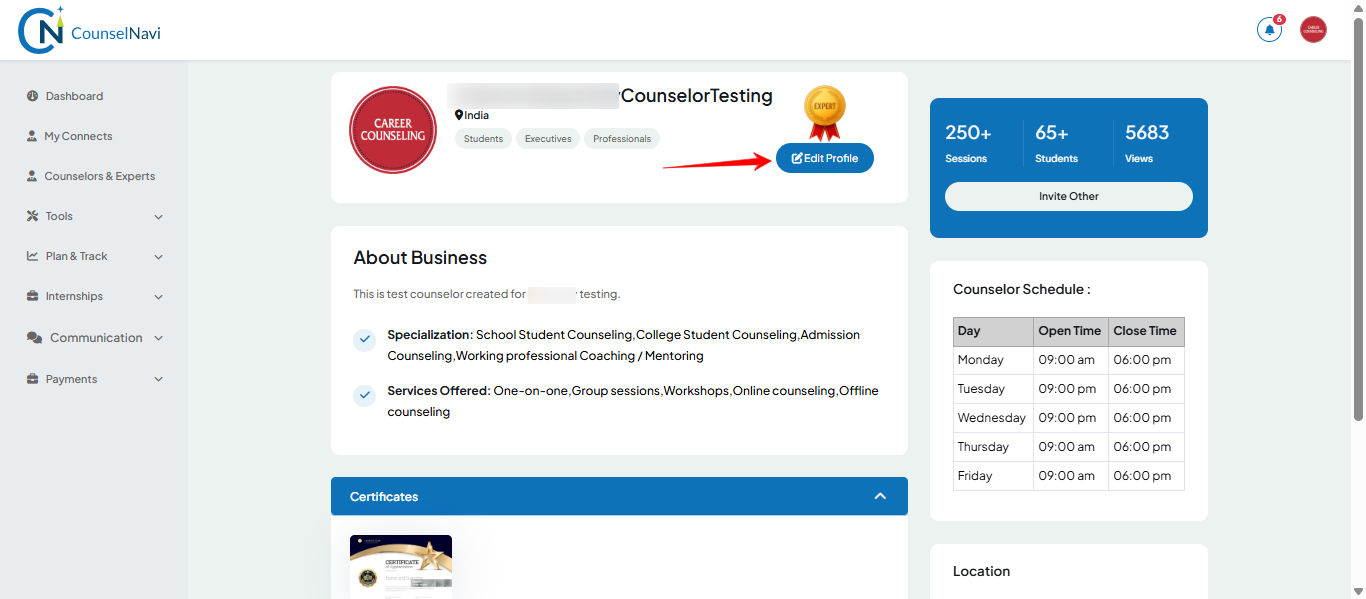
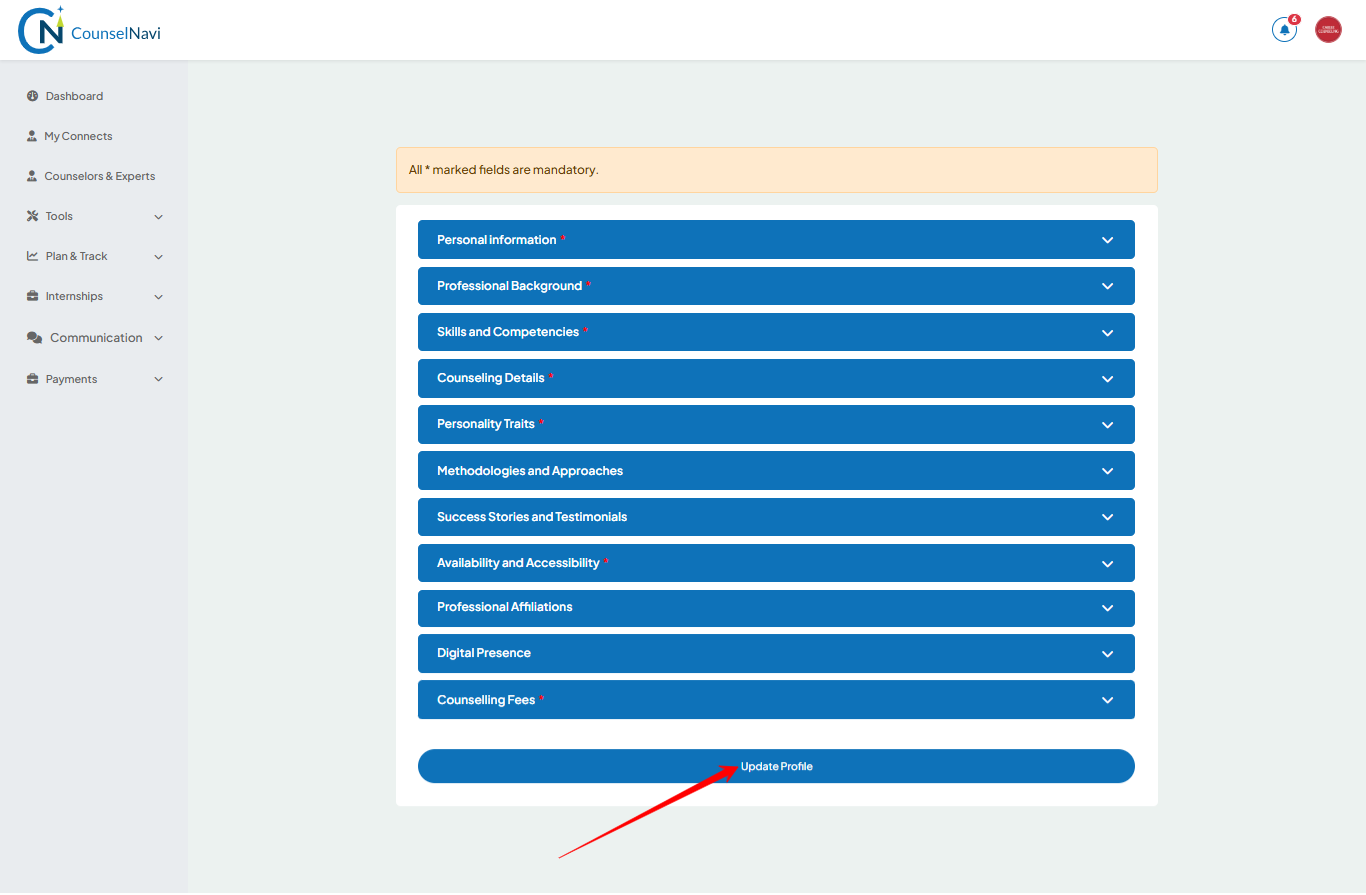
On the displayed Profile, Click “Edit Profile”. Complete the Mandatory information marked as *.
As we all are in the professional industry, CounselNavi trusts the information provided by the counsellor in the profile section. So it is the ownership of the counsellor to provide accurate and factual information.
The profile information is used by the backend smart tool to do the matching of student requirements and counsellor profile, when a student searches for the counsellor on the portal. So do add your relevant and important information in the profile including certifications and testimonials.
The profile tabs are self-explanatory. Sharing below explanation on some of the tabs which will be helpful.
2.2.1 The Counselling details tab:
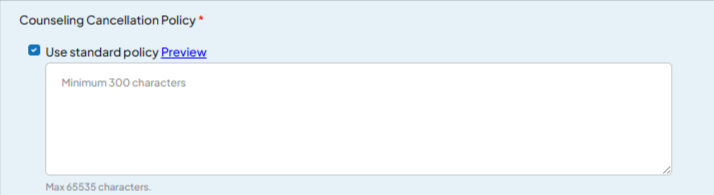
Standard policy will default ticks. You can click preview and read it.
If you want, you can un-tick it and add your own policy.
2.2.2 Clarification on the fees tab:

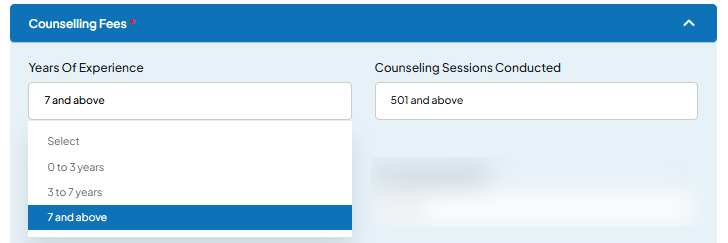
Indicate the number of years of experience in student career counselling / mentoring and the number of sessions conducted. This can include paid or non-paid sessions.
 |
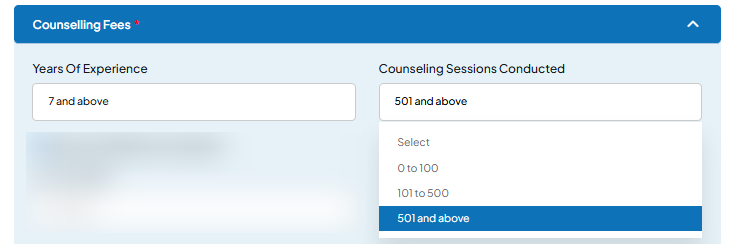 |
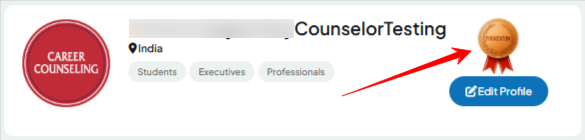
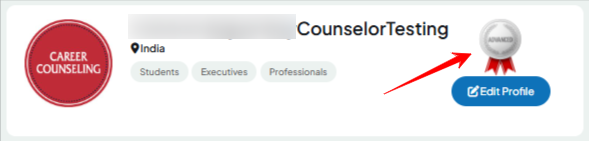
These are important details and this information is used to automatically determine your badge level (Foundation, Advance or Expert level of Counselling). The badge will be displayed on your profile page.
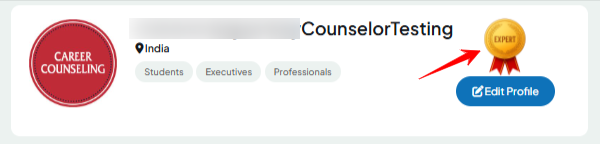
2.2.3 Counselling Fees details
In this section list down the normal fees you wish to charge to students. This amount can be changed anytime by visiting your profile and editing it.
The information provided in this section is strictly confidential and visible only to you. It will be used solely for the payment management process automatically. It will not be shared with any third party, nor will it be used for comparison or evaluation beyond its intended administrative use.
4 types of fees as explained below.
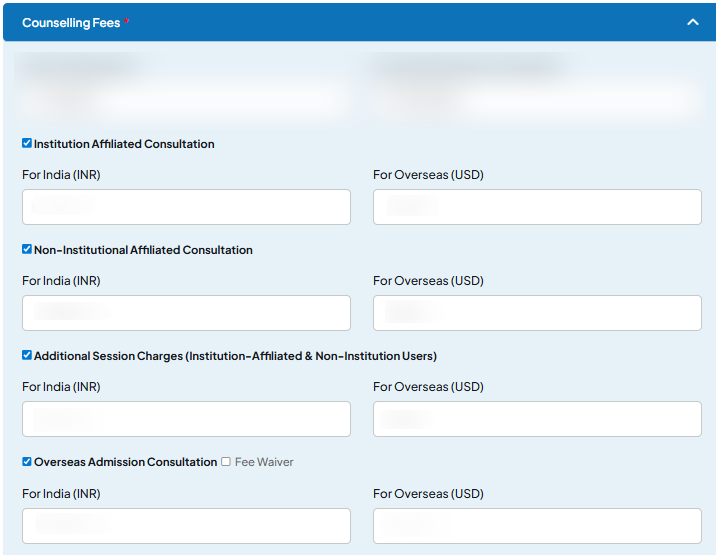
- Institute affiliated client: CounselNavi connects and signs up with schools / colleges. If you wish to be part of the school program then indicate the minimum fees expectations.
- Direct clients: Indicate the fees for non-institutional or direct leads that you process through CounselNavi
- Additional Sessions: Indicate fees per additional session.
- Overseas Admission counselling: If you are into overseas admission counselling, then indicate the fees. If you do not charge the fees to students (in case you have a revenue sharing plan with the college/ university), then Tick the Fee Waiver check box.
Also add the Counsellor bank details, which will be used by CounselNavi to transfer the due amount on monthly basis.
Tick the box.
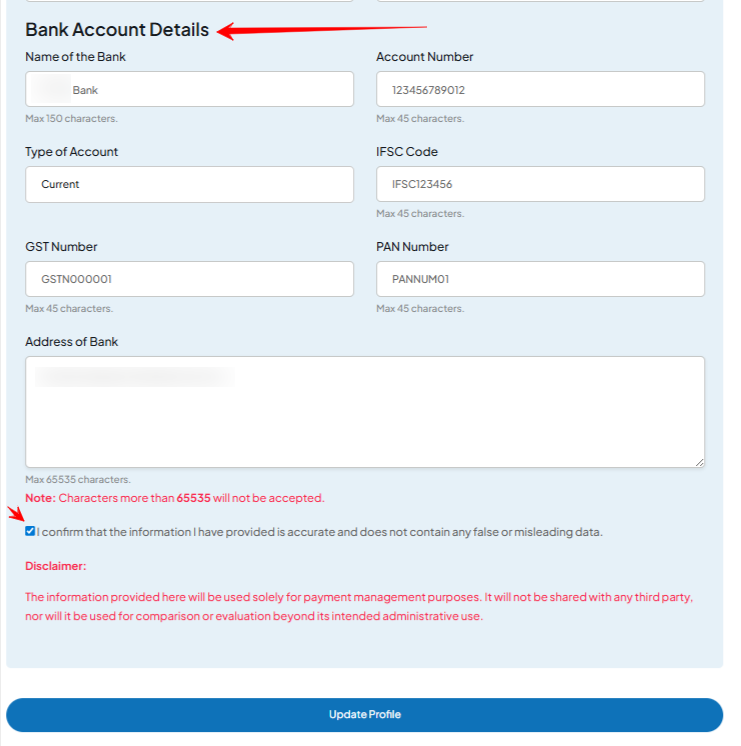
Un-tick and Tick the box and you can review the standard Counsellor and CounselNavi, terms of agreement. In the next version, this will be upgraded as a separate check box.

3. Dashboard Overview
Dashboard Screen
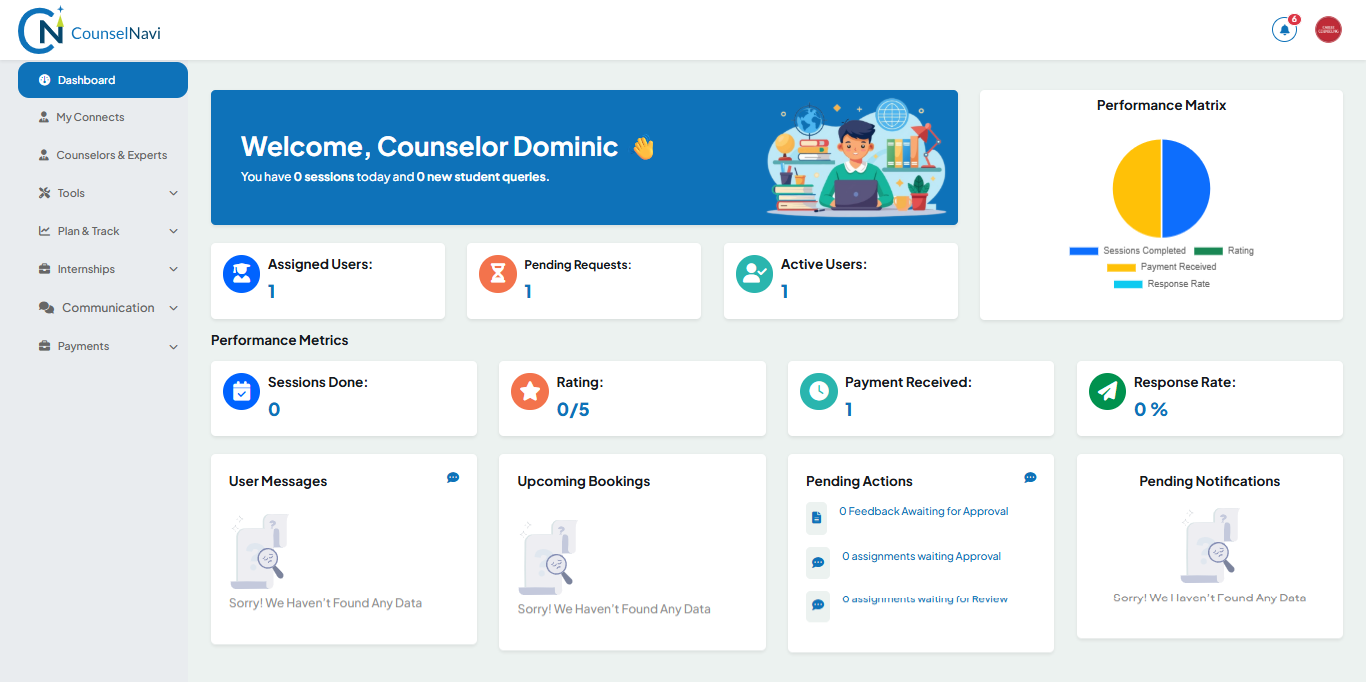
The information provided is designed to dynamically update. The click on respective tile will lead to the detailed screen.
- Assigned users: Total candidates assigned to you.
- Pending Requests: Counsellor yet to respond to candidate request to connect
- Active Users: Candidates where sessions are on-going.
- Sessions Done: Total number of sessions conducted as logged in the CounselNavi "Engagement Tracker" (for details refer Engagement Tracker tool covered in subsequent next section).
- Rating: Feedback rating by students/ professional counselled.
- Payment received: # of payments processed.
- Response Rate: <Functionality being developed.>
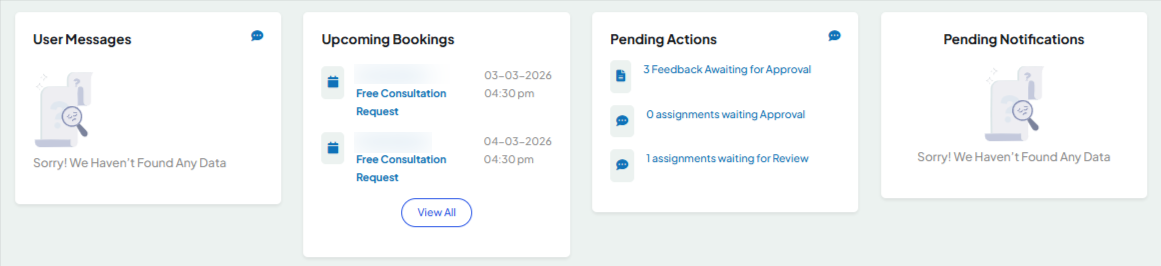
- User Messages: Inwards message from leads / clients
- Upcoming Bookings: Meetings booked by leads.
- Pending Actions: Self explanatory
- Pending Notifications: Leads / clients messages awaiting counsellor response a/ action.
4. Left Pane Menu
4.1 My connects
The list of the Leads / students connected with you.
Click the student name to look at the student profile.
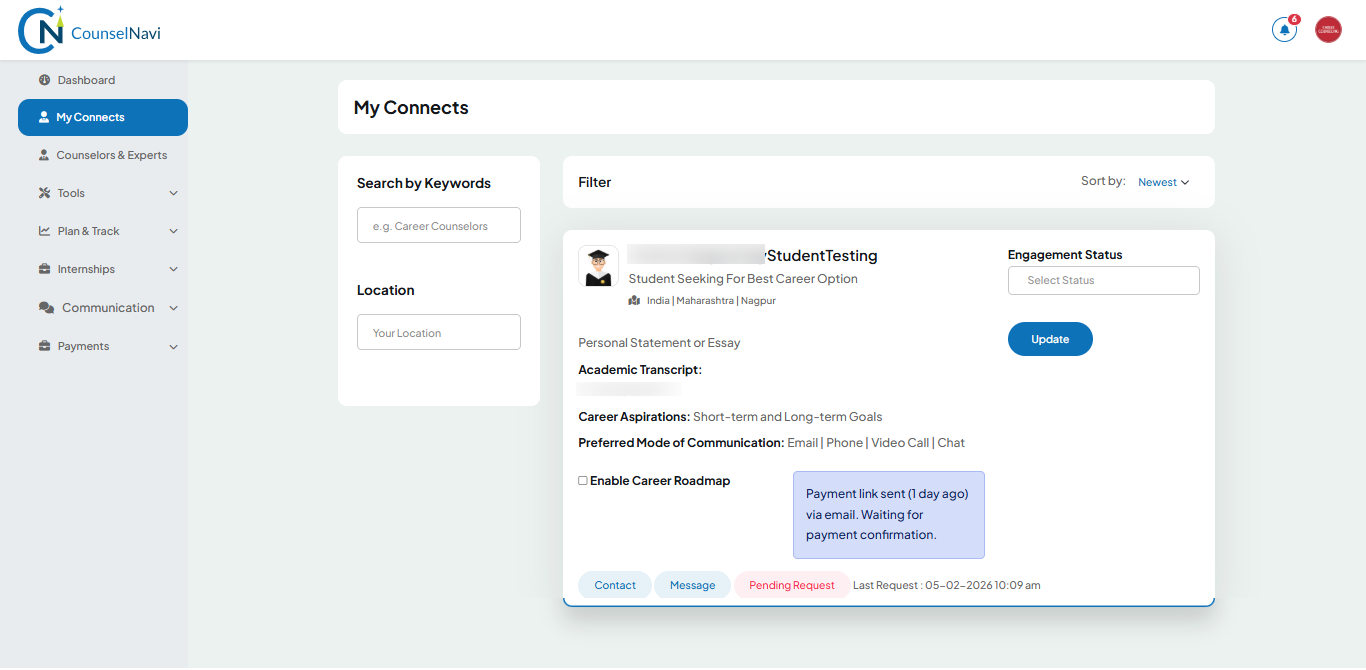
Click the Contact button to see the contact details. Click the Message button to send a message to the student / parent.
If the student has not completed the mandatory field in the profile, then an alert message will appear.
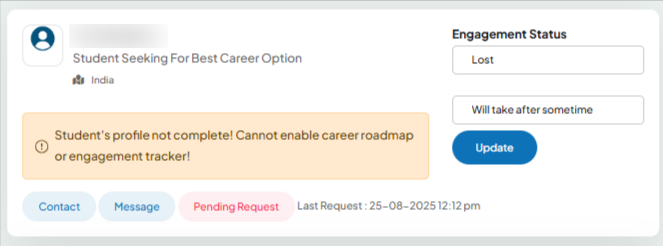
Alert message will disappear once the profile is complete.
4.2 Career Counsellors
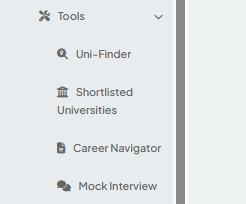
We encourage Career counsellors, Admission counsellors and Industry experts to use these Smart tools developed by CounselNavi.
Tools
Some of the tools will be charged to Students / clients. Out of those for some tools, a revenue sharing will be done with the counsellors. The policy and commercials for the tool usage by students and counselors will be published by CounselNavi from time to time.
4.3 Uni-Finder
It is an AI powered very powerful global university college search tool. The AI powered tool uses dynamic search and list display based on the key selection and eligibility criteria.
Fill up the details > Search by Clicking
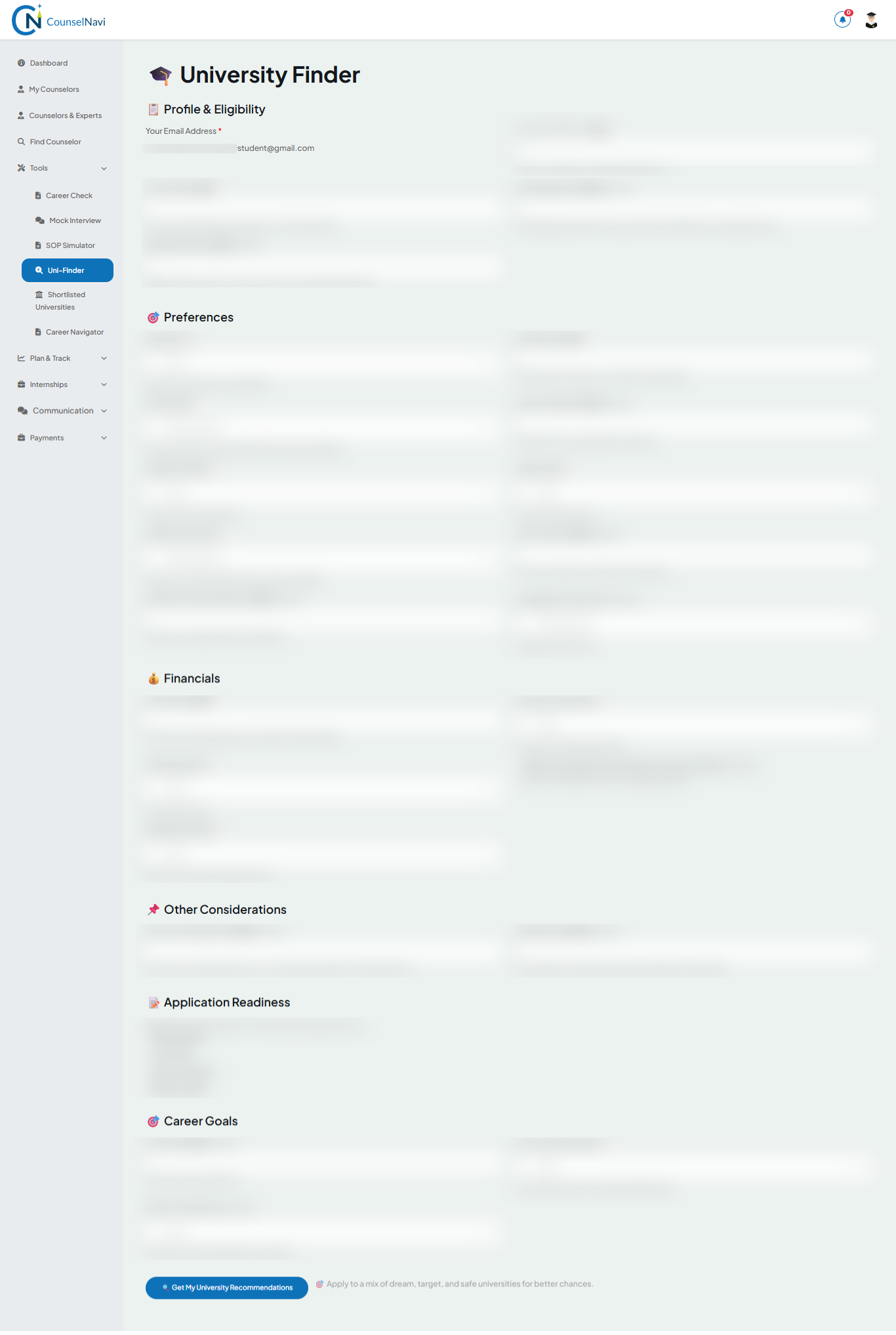
The tool will display details. You can do a second level filter / search. Short list universities and it will display in the “Shortlisted Universities” section. This will save time to repeat the search every time. You can list / delist from Shortlist.
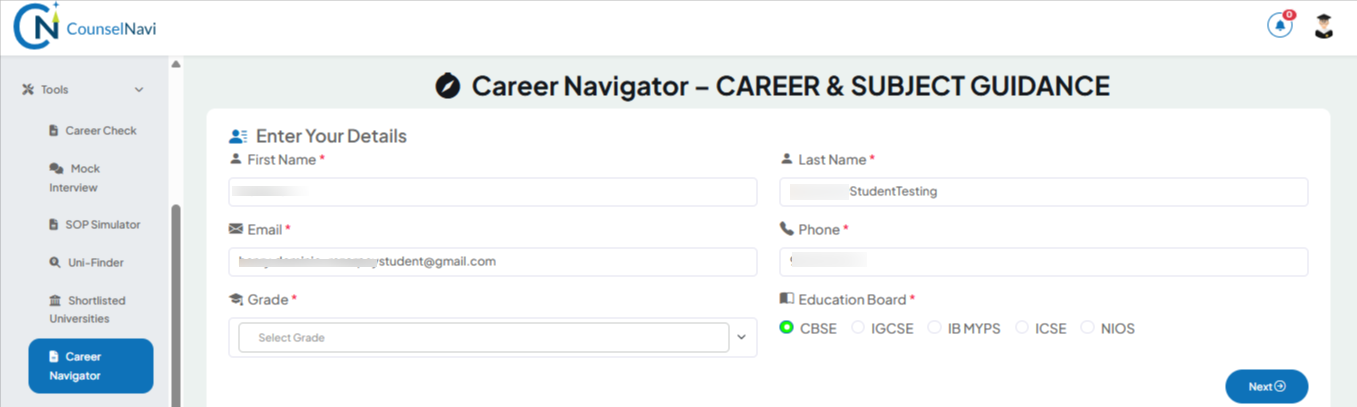
4.4 Career Discovery
The tool is to help students / parents get an indicative idea about the likely career stream and helps subject selection. This is an indicative and students / parents are suggested to go through the detailed career counselling session for effective career planning.
4.5 Mock Interview
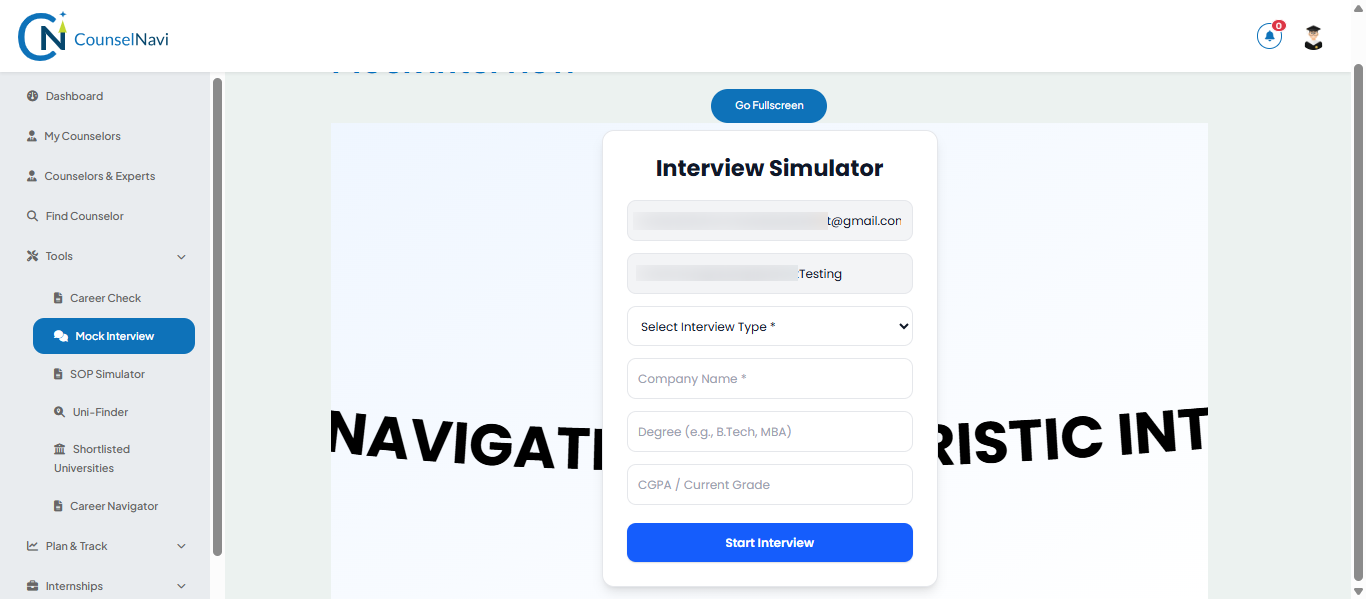
Another AI powered powerful Interview simulator tool. The interactive tool with which students can practice the Mock interview in a simulated environment.
It offers practice sessions for 3 categories:
- Higher Studies Interview
- Internship Interview
- Job Interview
An AI Avatar simulates the interview. It has both Chat and speak options. Do recommend this tool to students or job seekers.
Plan and Track
4.6 Engagement Tracker
For the students, the Engagement Tracker is a tool designed to enhance the interaction and tracking process between counsellor and their customers (students/professionals).
- Plan Engagements: Define sessions - Pre-Engagement and counselling sessions.
- Track the Progress: Add dates, notes, and outcomes for each session.
- Share Materials: Upload and share documents (like Psychometric report, and related other relevant documents).
- Future Reference: Build a record that you and your customers can refer to anytime.
4.6.1 How to use it
On My Students tab, select the student and check box the ‘Engagement Tracker’, to activate the function for that student..
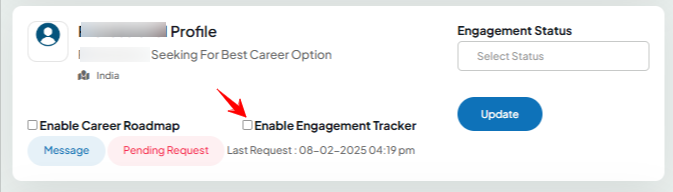
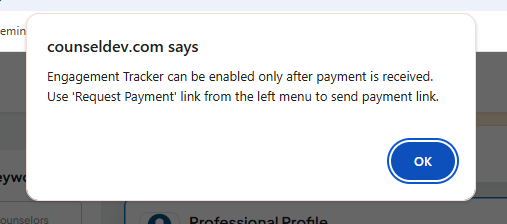
Note: Please note that Engagement Tracker can be enabled only after payment is received. Otherwise you will see the below error message. Counsellors must use 'Request Payment' link from the left menu for sending payment link to student.
Please refer to the below 2 images:
- Click on the Engagement Tracker.
- Student Name: Search a Student/Professional
- Select Engagement Type
- Date of Engagement
- Participant Counsellor
- Add notes (optional)
- Add Outcome (optional)
- Upload supporting attachment (optional)
- Next session date (planned) Optional
- Save Engagement
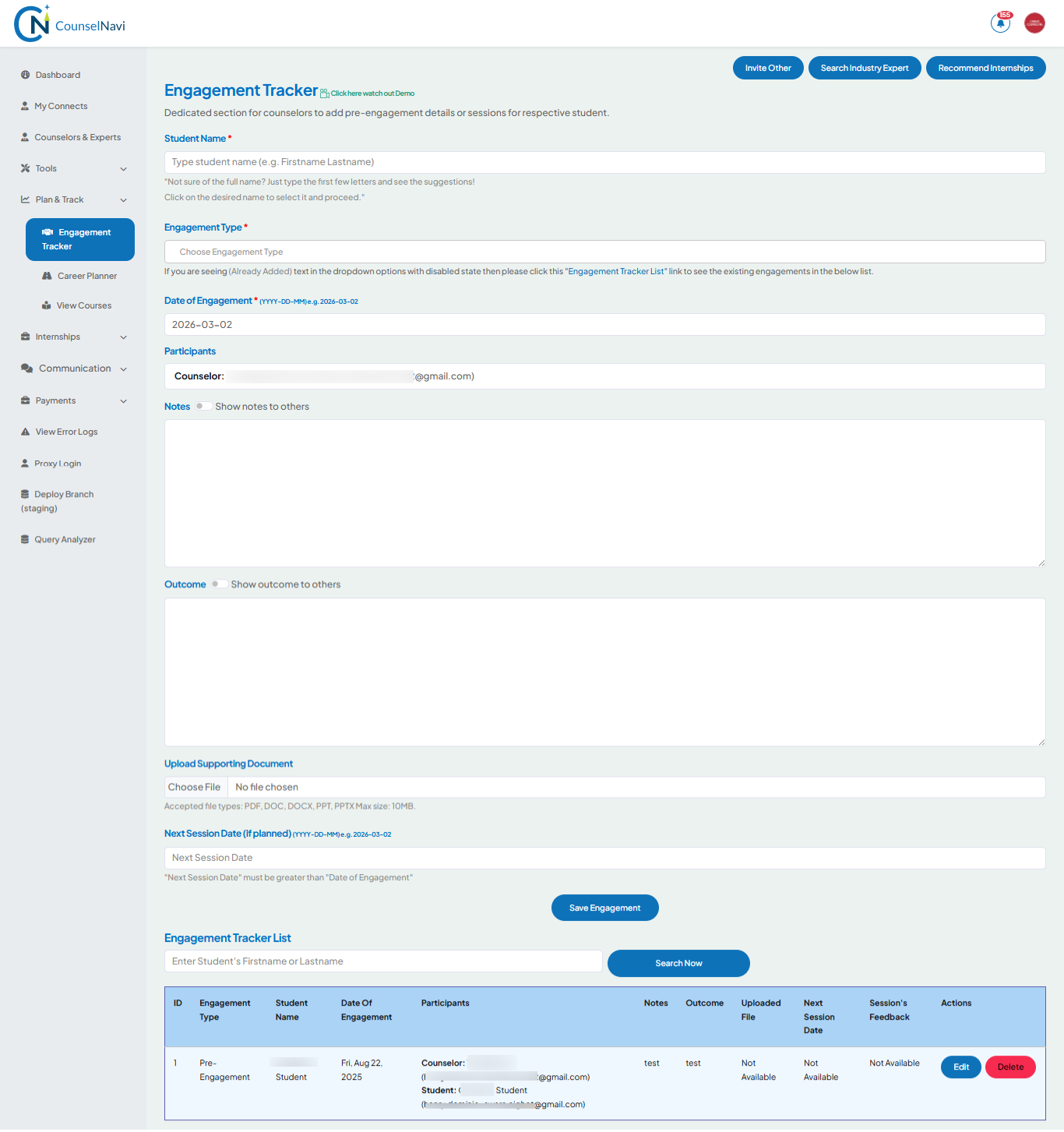
Counselors have an option to decide if notes and/ or outcomes details should be visible to Student / parents or for their own reference. Use the toggle switch to share.
Search Industry Expert: Use this function if you want to search and recommend an Industry expert / mentor to the student after the career planning is done and a stage where you suggest the student connect with Industry expert for mentoring and hand holding.
Recommend Internship: Use this function if you want to search and recommend the internship to the student after the career planning is done and a stage where you suggest the student to get an Industry experience. Refer to the Internship section below for details. Refer to the demo video for more details.
4.7 Career Planner
It is a comprehensive tool designed for counselors to effectively plan, track, monitor, and ensure the successful execution of activities necessary for the career development of students and professionals. This platform enables counsellors to provide structured guidance, ensuring that each individual is on the right path to achieve their career goals. Functions and tabs are self-explanatory and have flexibility of usage.
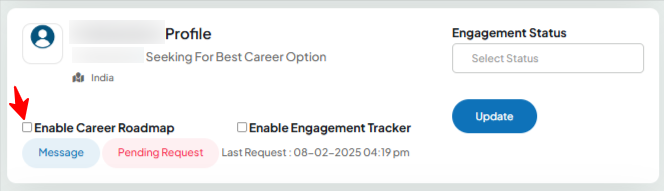
To activate this function for a student, go My Students tab, select the student and check the box "Enable Career Roadmap”.
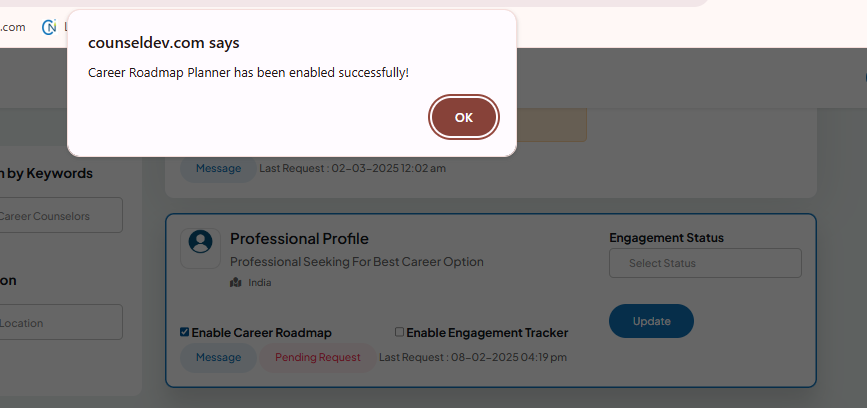
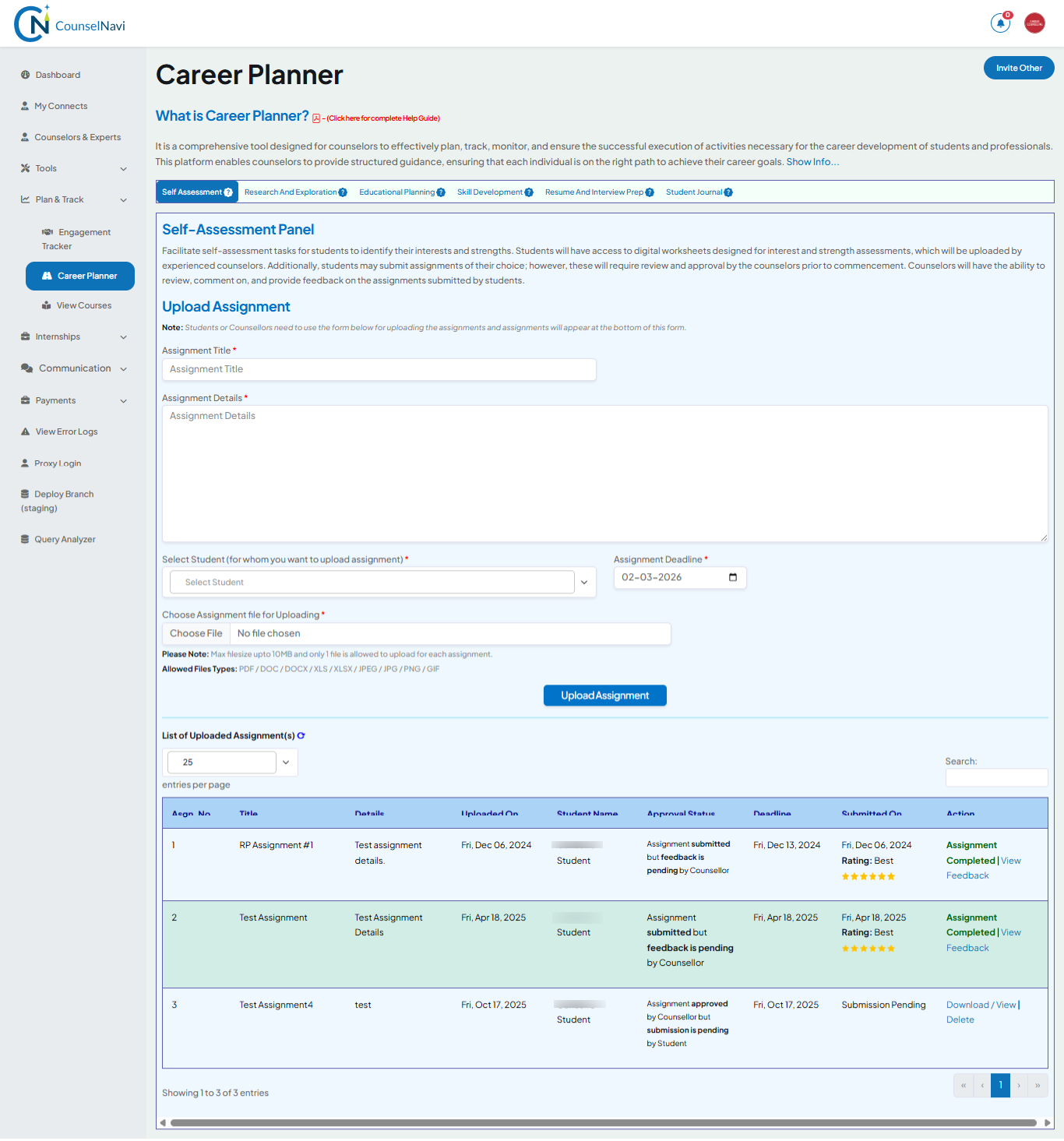
Refer the details @ Career Planner Help Guide
4.8 View Courses
The list of courses that you can refer and suggest to students.
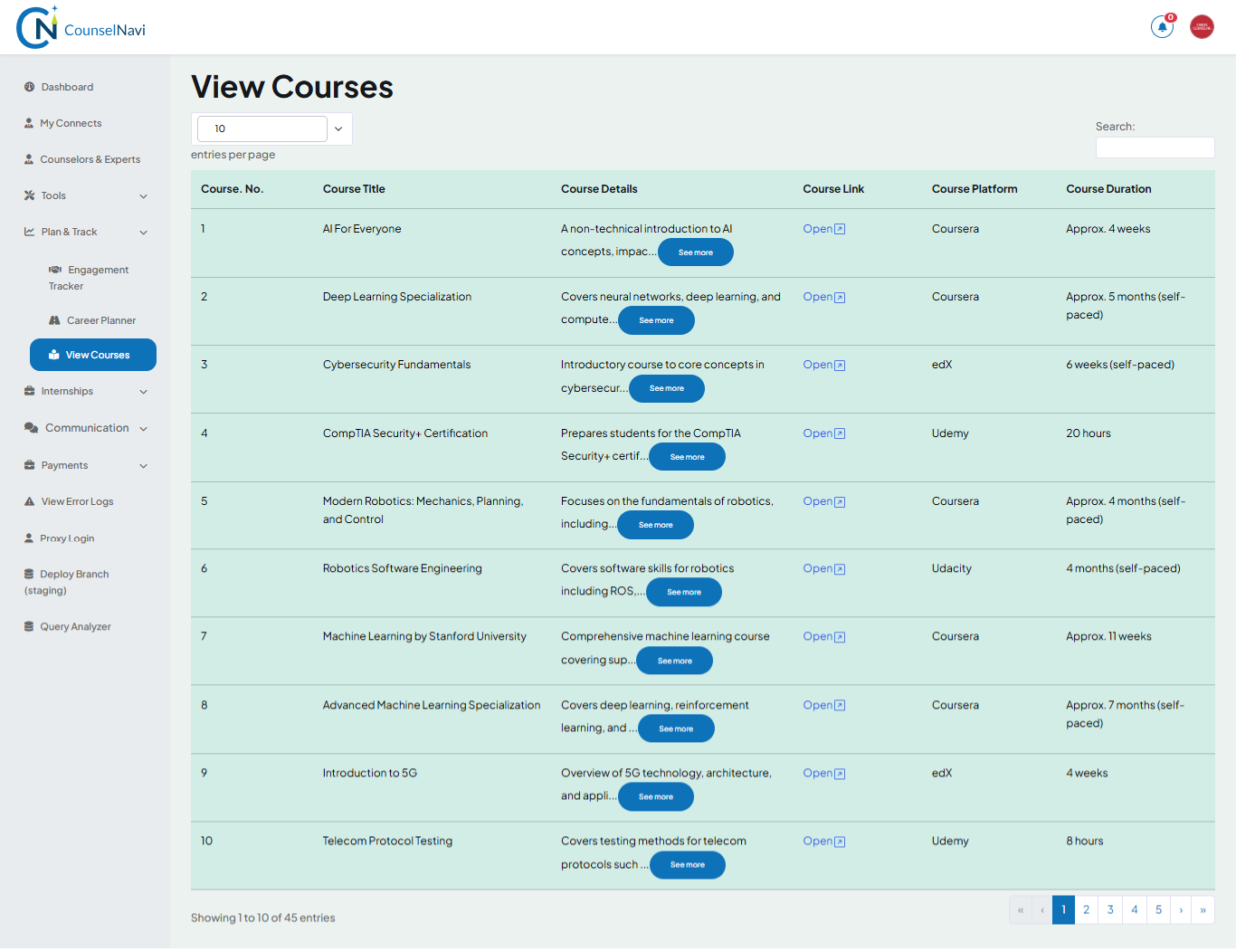
4.9 Internship
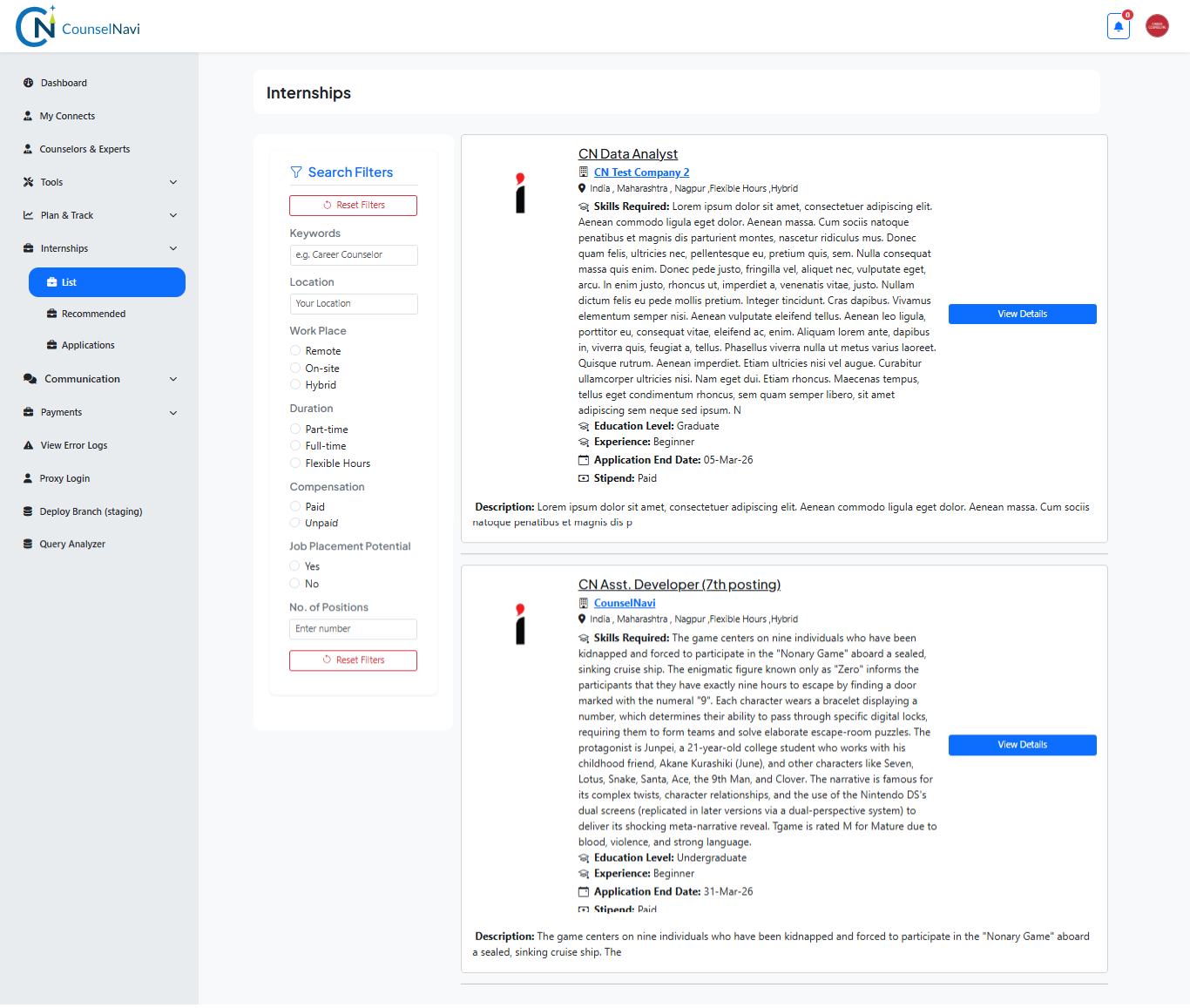
List: The list of available internships
Recommend Internship: Use this function if you want to search and recommend the internship to the student after the career planning is done and a stage where you suggest the student to get an Industry experience.
- Search the Internship
- A list will be displayed
- Select the internship
- Select the name of the student
- Recommend the internship
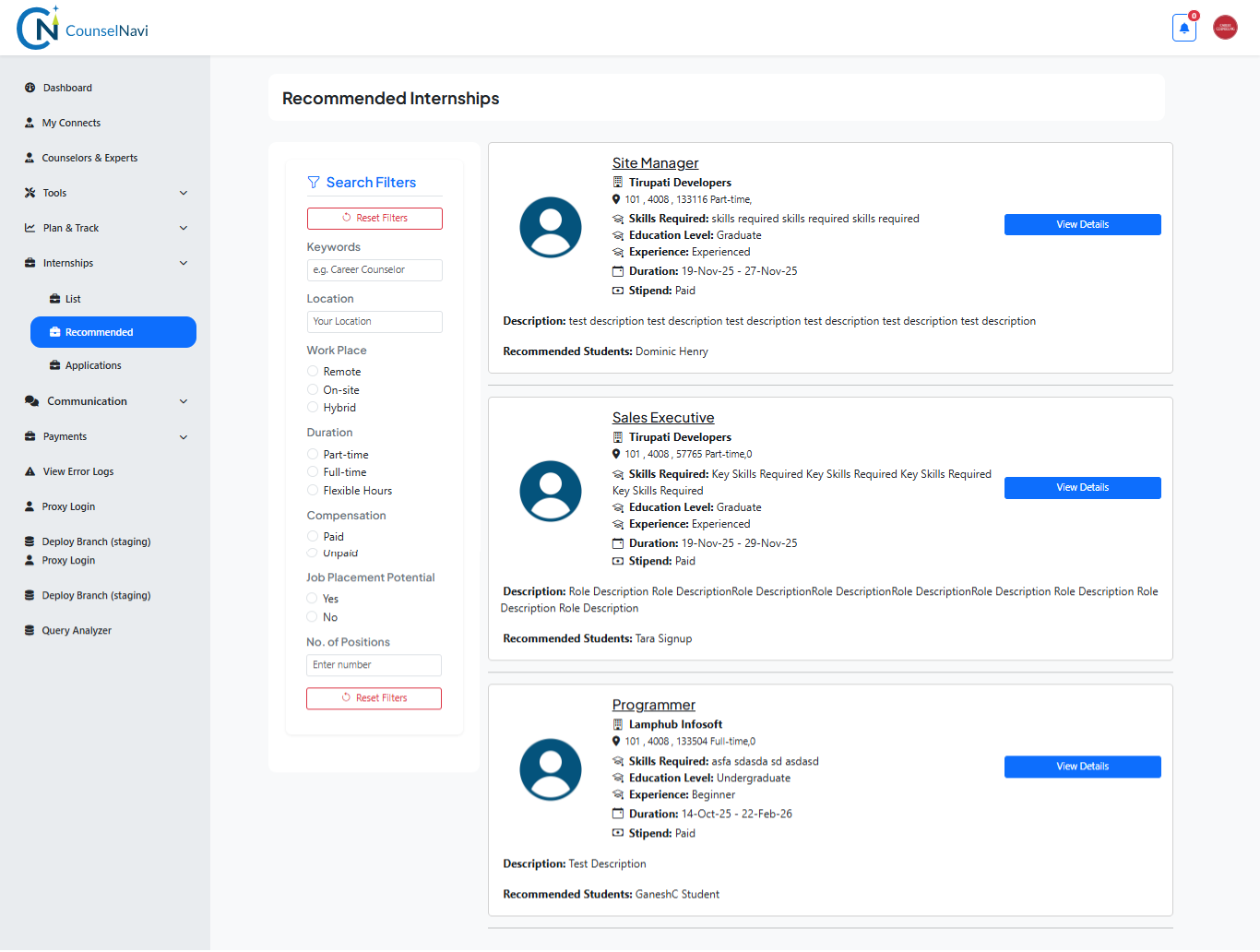
- This will appear in your Recommended Internship menu as well on the Student dashboard.
Recommend Internship: Once a student applies for the Internship you recommended for the status will be updated here.
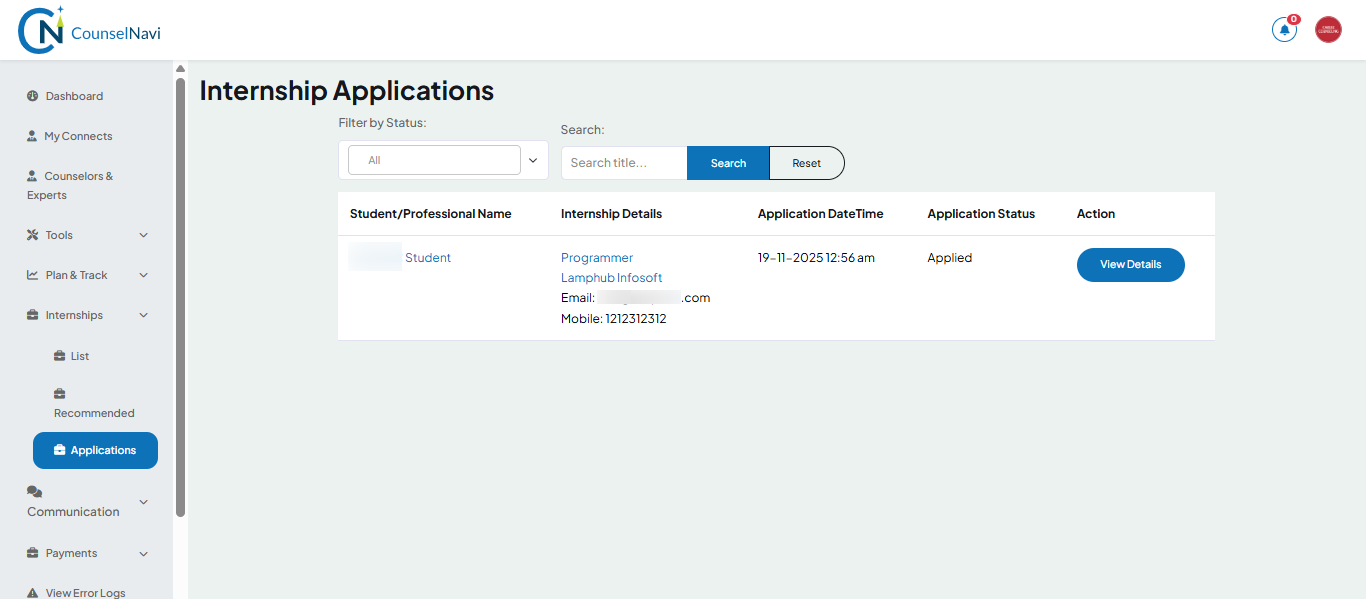
Internship Applications: Here we can see all the applications by the students.
4.10 Communication
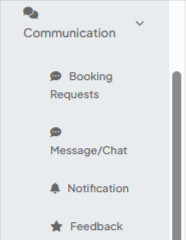 |
This is a communication tracker for the counselor / Industry expert. You can check Booking requests, Messages / chats, Notifications (read / unread) from leads / clients. Also can check the feedback given by the client on the sessions done. |
The above functions are self-explanatory.
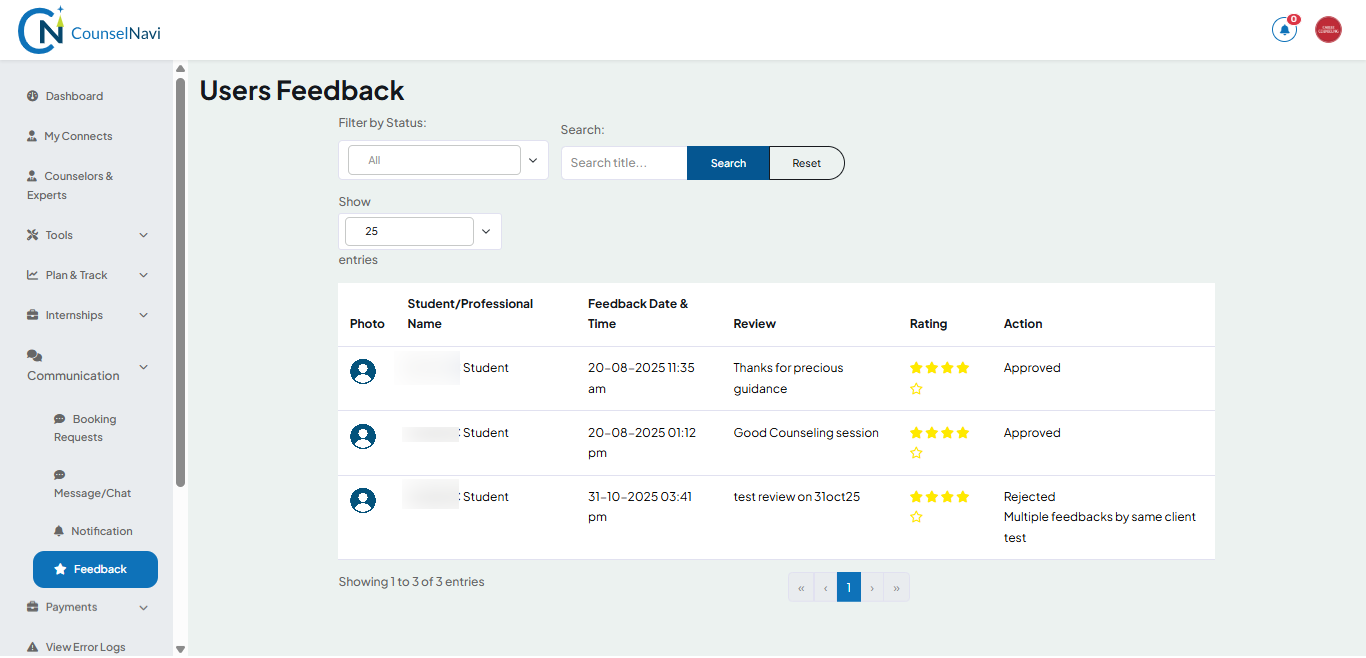
Feedback detailed screen: The client feedback will be displayed here. Counselors can review it and decide to accept or reject. The accepted feedback will be displayed on the counselor profile page.
4.11 Payments
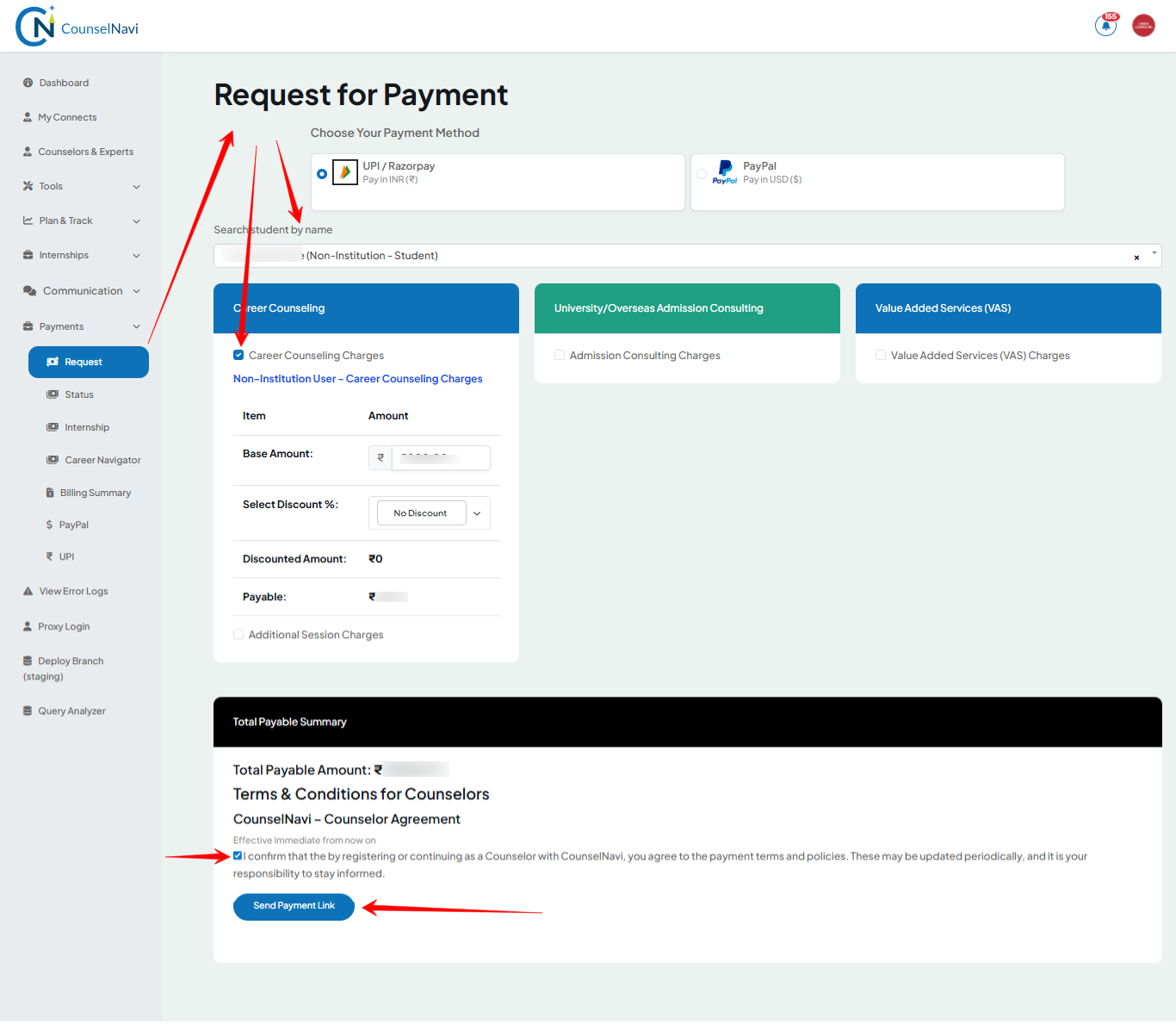
4.11.1 Request for Payment
Step 1: Search the candidate
Step 2: Select the type of charge
Step 3: The amount from the profile will be displayed in INR and USD. You can edit the base amount. Also select the discount %, if you want to show on the invoice.
Step 4: Click “Send Payment Link” This will send the payment link email to the client’s registered email ID and copy to Counselor / IE.
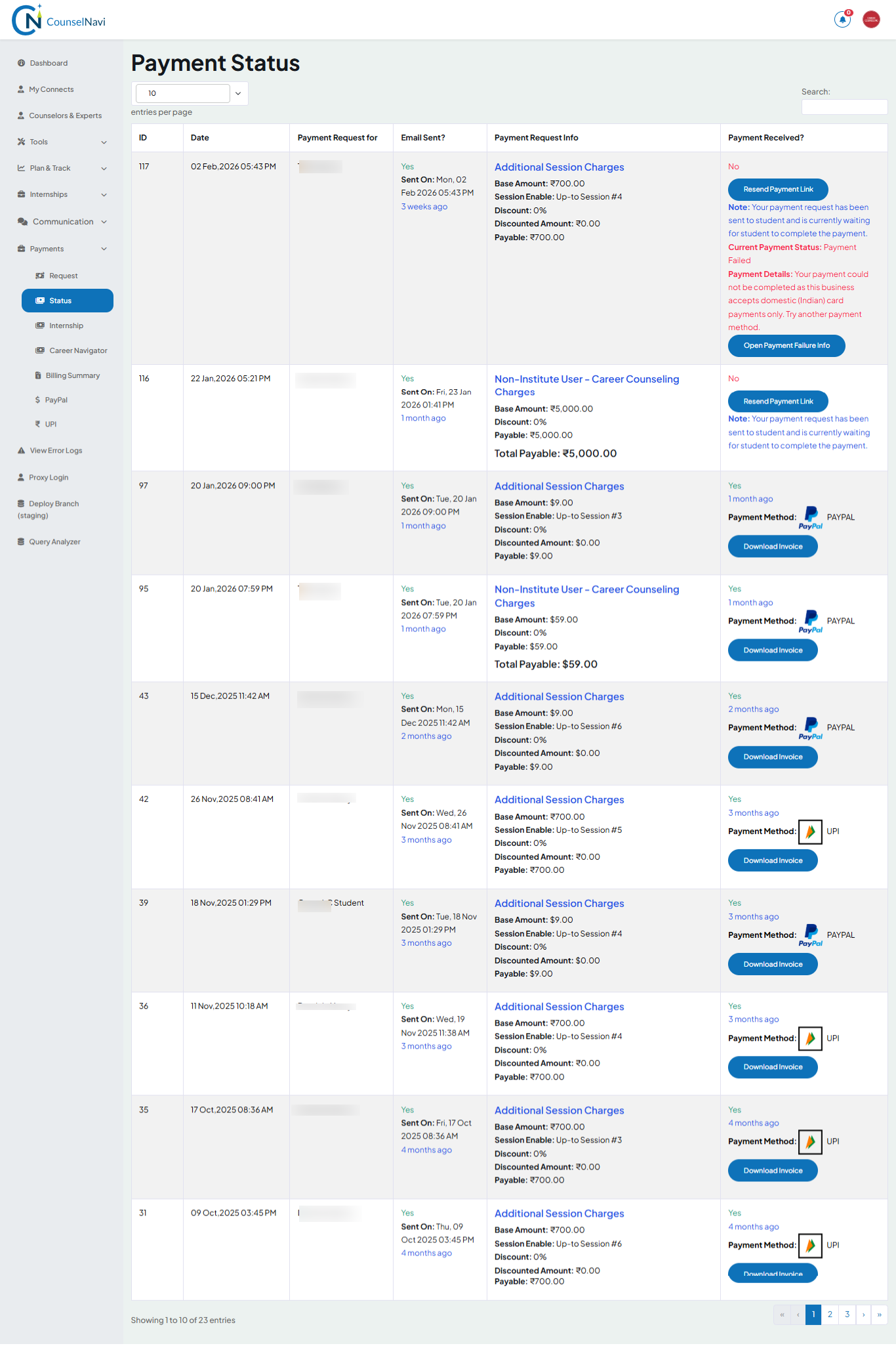
4.11.2 Payment Status
Will display the details and status of payment.
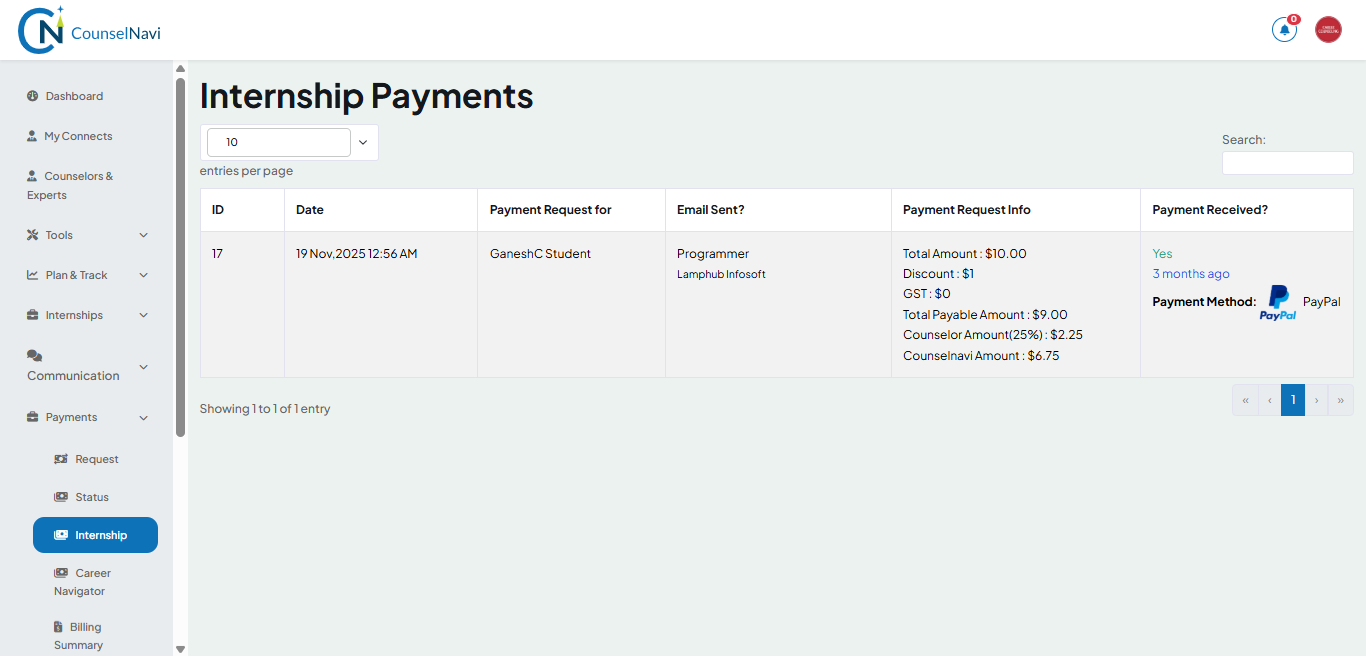
4.11.3 Internship
If the counselor / IR recommends the internship and the candidate pays for it, then referral share amount will be displayed on this screen. The policy towards the revenue sharing will be communicated by CounselNavi.
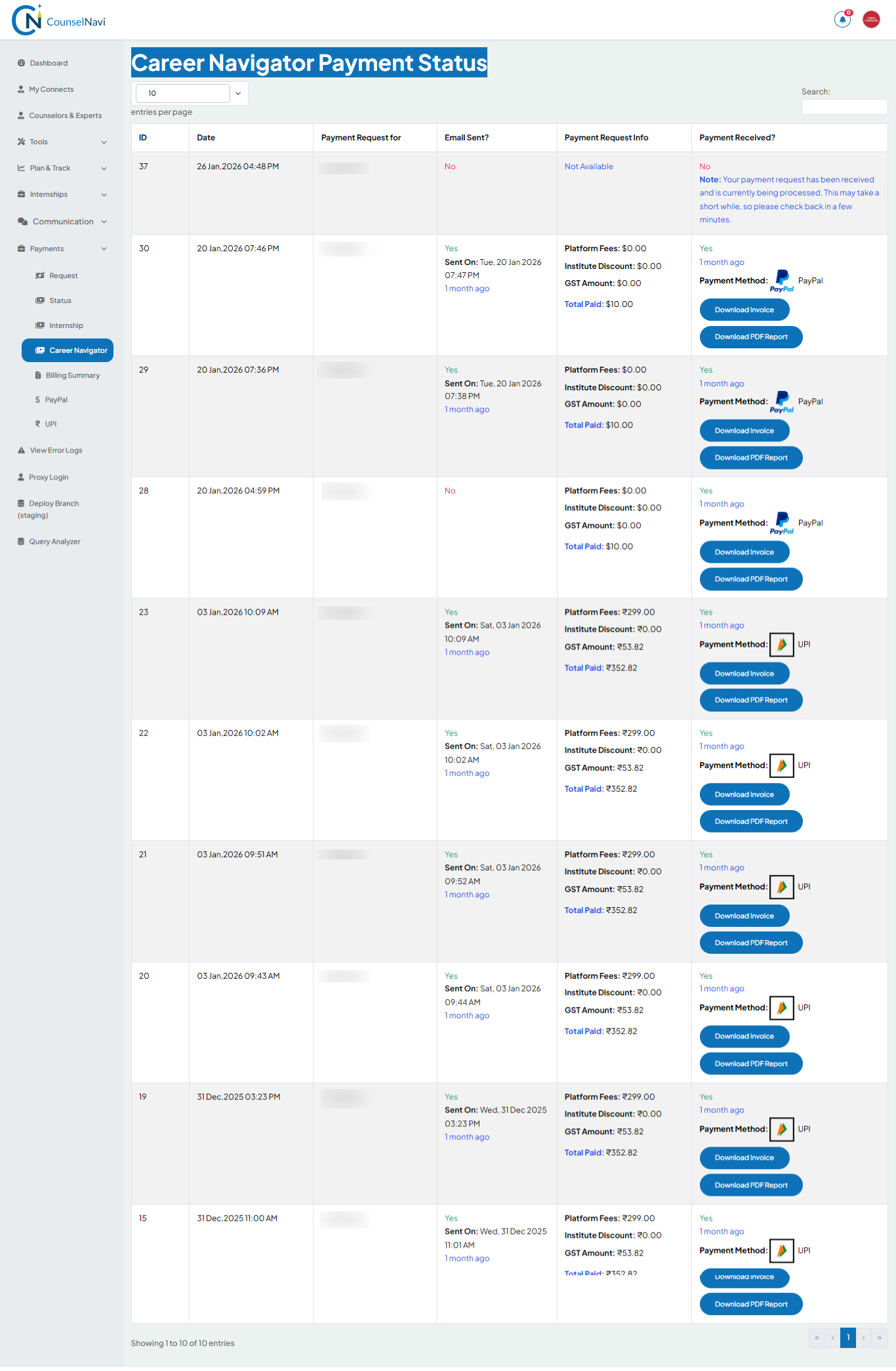
4.11.4 Career Discovery
If counselor / IR recommends this function and candidate pays for it, then referral share amount will be displayed on this screen. The policy towards the revenue sharing will be communicated by CounselNavi.
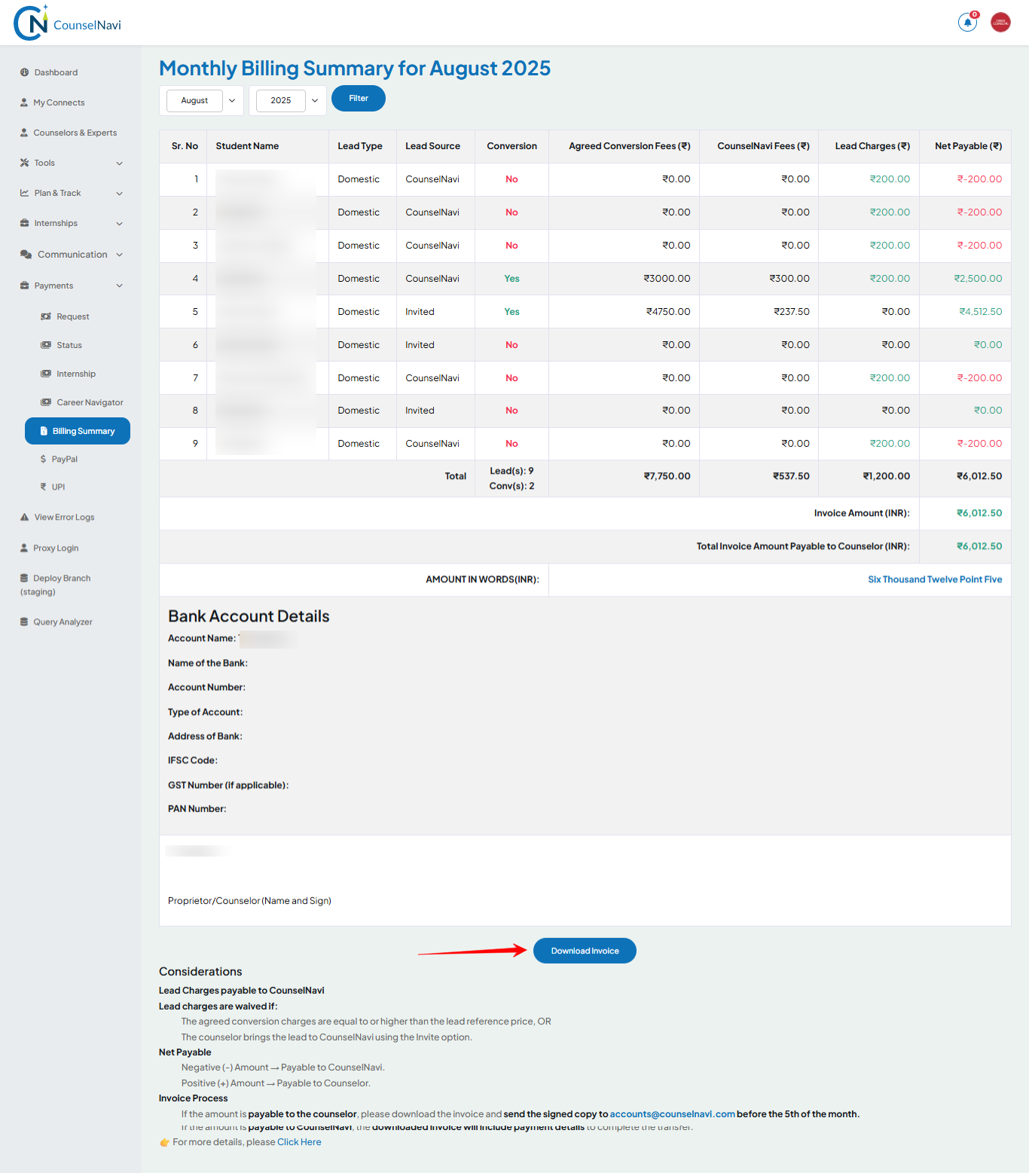
4.11.5 Billing Summary
Will display the billing summary. You can filter by month and year.
The summary can be downloaded by clicking the button at the bottom of the screen.
5. Lead management
Hot leads
You get student / professional leads connected through the CounselNavi portal. The lead charges will be applicable when a student connects with the counselor / IE. The policy is published by CounselNavi from time to time.
Cold leads
From time to time, CounselNavi will allocate Cold leads to you on a case to case basis. The charges will be discussed on a case to case basis.
Institute leads
The counseling or mentoring program will include the package signed in MoU (number of sessions and the fees and CounselNavi lead management charges). This will be discussed on a case to case basis.
5.1 Referral leads: Do share personalised profile link to candidates
From your profile, click “Invite Other”. The link will be displayed on the screen. Copy the link and share with your contacts.
5.2 Leads from CounselNavi (Non-institutional):
5.2.1 Lead connect:
Students after sign-up on CounselNavi platform, will search the counselor profile, and will send the message to one or more selected counselors.
The communication could be of 3 types,
- Requesting a free consultation
- Booking a calendar appointment
- Simple connect message.
The incoming messages will be displayed on the Dashboard Or can be seen from the Communication function. The initiation will also be sent to WhatsApp registered on profile.
5.2.2 Discussion and Lead conversion:
Suggested steps:
- ✔ Accept the connection request.
- ✔ Connect with students and parents.
- ✔ Discuss and decide the counselling program
- ✔ Agree on the counselling fees (Counsellor decides fees and program services)
- ✔ Ask student to complete the student profile on CounselNavi platform
- ✔ Send payment request
- ✔ Proceed with the counselling / mentoring sessions
- ✔ Do use the Engagement Tracker to log the initial connect and subsequent sessions
- ✔ Do leverage other tools offered by CounselNavi.
- ✔ On completion of counselling sessions, get the feedback from parents / students.
5.3 Leads from CounselNavi (Institutional):
CounselNavi connects with college and/or school institutes and signs a MoU for counseling / mentoring engagement.
From time to time CounselNavi will connect with the counselors and share the terms of engagement. The counselors willing to take up the assignment will be onboard to the respective panel.
The connect and session delivery flow will be similar to listed in 5.2 unless specifically called for a specific institute.
6. Settings
6.1 Change Password: Use it to change the password.
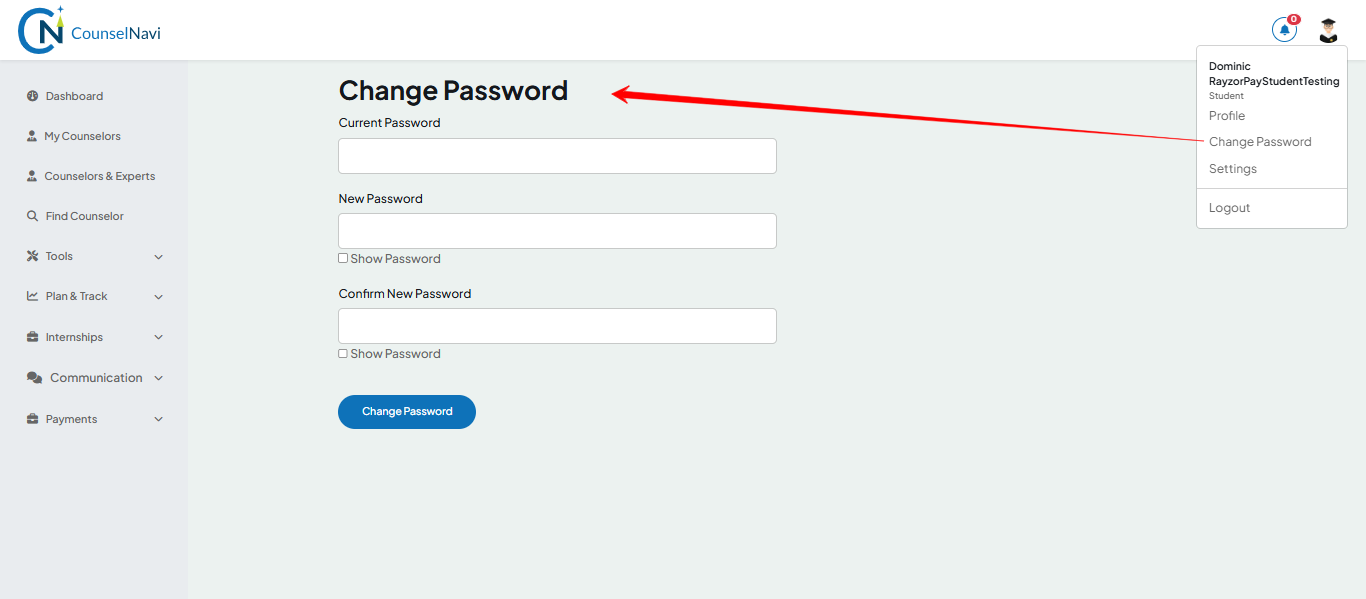
6.2 Settings
6.2.1 Engagement Tracker setting
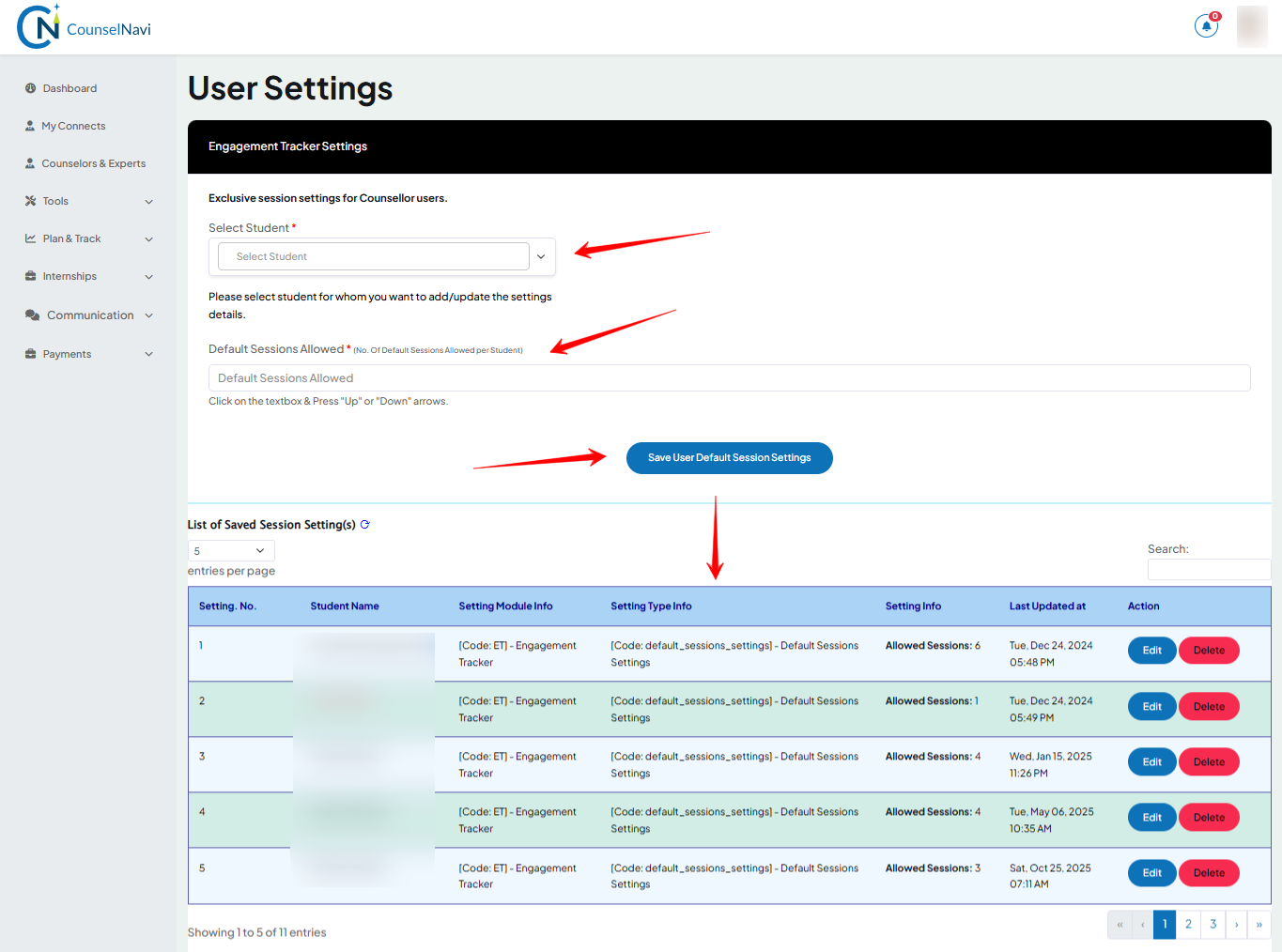
- Select the student / candidate
- Add default number of sessions for that student
- Save User default session settings
6.2.2 Career Planner Settings
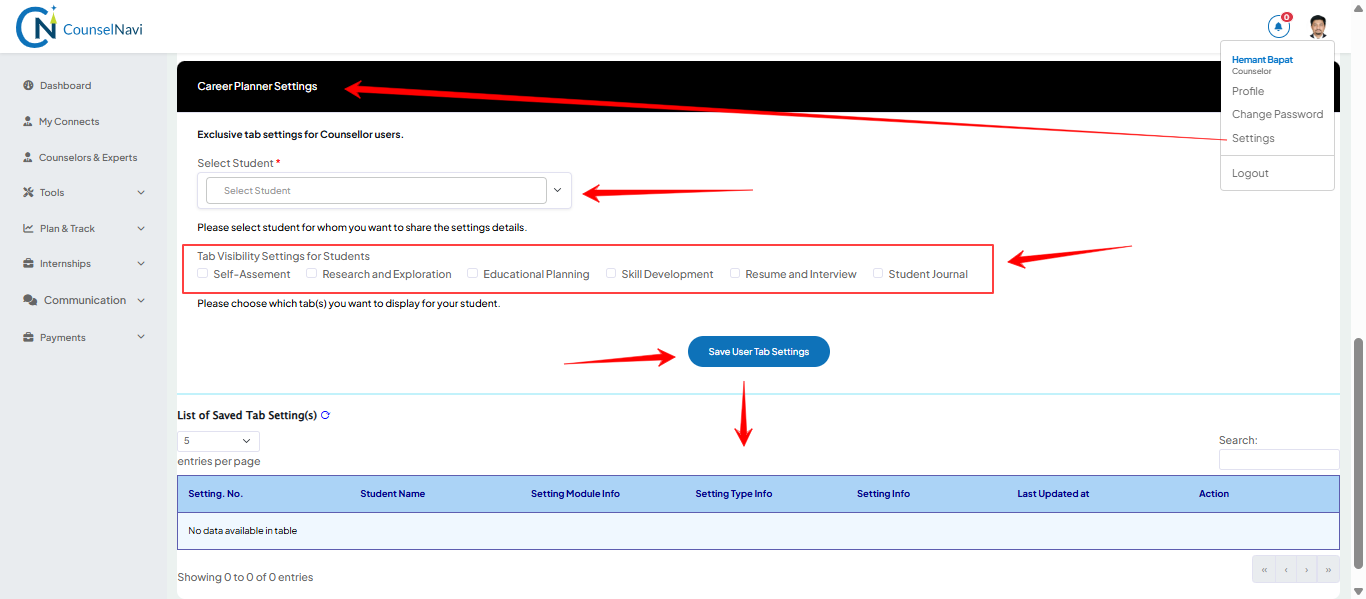
- Select the student / candidate
- Select the tabs to be visible to the students
- Save User Tab settings
7. Home Menu functions
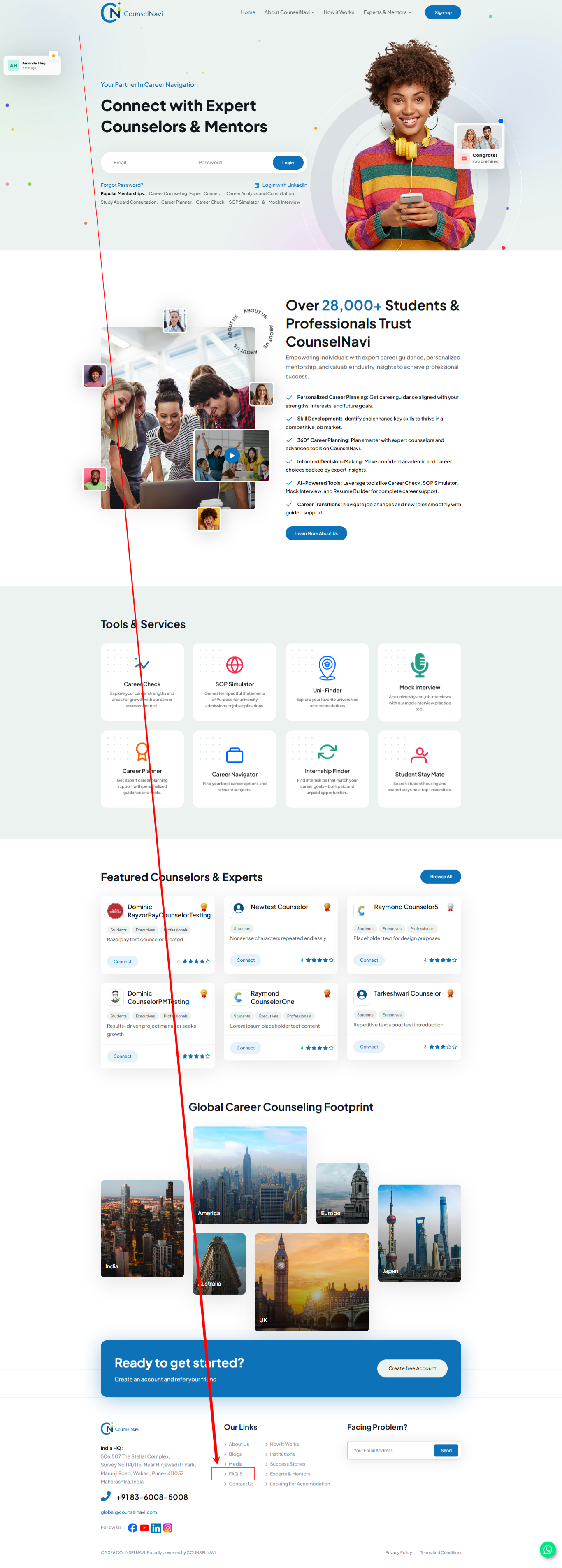
These functions are self-explanatory.
Also refer to the FAQ section at the bottom of the home screen.
8. Technical Support & Help
8.1 Common issues
- Login error, Profile not saved. Error 500, etc.
For any technical issue WhatsApp +91 83-6008-5008
Or email to global@counselnavi.com
9. Privacy & Data Security
Counselor base fees related information is collected solely for the payment management system and not shared with other counselors neither used for comparison.
Rest of the counselor profile information is visible to students / parents and is available publicly on the CounselNavi portal.
10. Counsellor Off-boarding
If any counselor wishes to STOP the engagement with the CounselNavi, can do so by writing an email to global@counselnavi.com with a requested date of off-boarding. Please provide 1 working week time to process the request.
The CounselNavi team will process the request and send you the confirmation in email. Your profile and access to the system will be deactivated from the agreed off-boarding date. However, the previous transactions will be retained in the system as needed for the audit purpose.
Depending on the cases, CounselNavi may initiate off-boarding. This will be communicated to the counselor and timeline will depend on the nature and reason for the action.
In both the above cases, the client served and the data served by the counselor during the period of engagement remains
11. Appendices
- Coming Soon!